Mobile App to export data from Xiaomi Scales:
- Mi Smart Scale
- Mi Body Composition Scale 1 and 2
- Mi Body Composition Scale S400 (Direct connect legacy) (only Android)
- Xiaomi S200 S400 S800 scales (Xiaomi Home)
and upload it to Garmin Connect Cloud.
It also allows you to upload manually entered body composition data to the Garmin cloud.
[!CAUTION]
This application is not supported or endorsed by Xiaomi or Garmin. So it could stop working at any moment. It is intended for personal use only and is not to be used for financial gain. The creator takes no responsibility for any consequences that may arise from its use.
Steps to Connect Mi Body Compostion Scale 1 and 2:
-
Add Scale to Zepp Life app.
-
You will need the Bluetooth address of the scale. Go to Zepp Life > Profile > My devices > Mi Body Composition Scale > Bluetooth address (hold to copy)

-
If your scale supports “Weigh small object” - turn it off
-
Open Settings in MiSCale Exporter. Select Scale Model to Mi Body Compositon Scale 1 / 2 and paste Bluetooth address.

-
Now it’s time for measurement. Stand on your scale. Measure yourself and get data from the scale. Mi Body Composition Scale is active up to 15 min after the measurement.


- These types of scales do not measure body composition. They measure weight and impedance and estimate the result based on those measurements. The exact calculation algorithm is unknown, but with the help of reverse engineers, an approximate one has been achieved, which gives a satisfactory result. However, this means that the final result may differ slightly from that provided by the application. For this calculation proper age, height and sex is needed.
Steps to Connect Xiaomi Body Composition Scale S400:
-
Add Scale to Xiaomi Home App and do first measurement. You can disable Heart rate measurement to fast up whole process.
-
You will need scale MAC address and BLE Key from Xiaomi Cloud. You can get it on many ways but I recommend ‘Xiaomi Cloud Tokens Extractor’ Go to https://github.com/PiotrMachowski/Xiaomi-cloud-tokens-extractor and use your preferred way.
Find Xiaomi Body Composition Scale S400 on the list of your devices and copy BLE KEY and MAC and save it for later.

-
Now you need to completely kill the app (so that it doesn’t run in the background either). Or remove the scale from the list of devices - if you use other devices with Xiaomi Home. The scale will only send the needed data when it is not able to connect to the Xiaomi Home app! Every time when you add Scale as new device to Xiaomi Home new BLE key will be generated.

-
Now got MiScale Exporter settings, select S400 scale and paste MAC address and BLE Key.

-
The scale only sends data in a short time window at the end of weighing, so it’s important to start the measurement before stepping on the scale. The Bluetooth icon should blink. (Watch the video below)
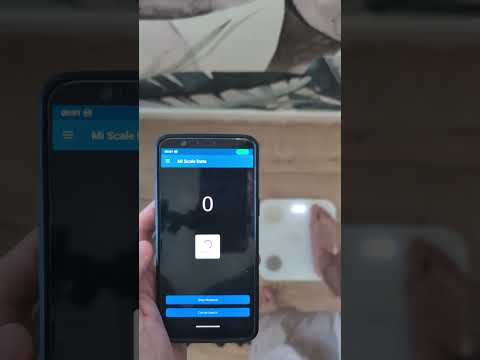
-
These types of scales do not measure body composition. They measure weight and impedance and estimate the result based on those measurements. The scale sends 3 values: Weight, impedance and Heart rate. To receive body composition data, impedance is processed by an algorithm known to be similar to that used by the Mi Body Composition Scale 2 (different from that used by the S400). Because of this, the result may differ from that of the Xiaomi Home app. For this calculation proper age, height and sex is needed.
-
Bear in mind that it is an experimental solution and errors may occur. If you encounter them, please contact me.


Steps to connect Xiaomi Home
Work in progress
-
In the new Xiaomi Settings you have to provide your User ID and Pass Token. You can get them by 2 methods.
1.1. First one, built in, look for Xiaomi token page in the app, and click on Get Pass Token button. A QR code will appear that you can scan, or there will be a link below it that you should click. You will be redirected to the Xiaomi website, where you’ll need to confirm the login on your new device. After that, the necessary information should appear in the app.

1.2. Alternatively, you can use the https://github.com/PiotrMachowski/Xiaomi-cloud-tokens-extractor by running it in debug mode (py token_extractor.py –log_level DEBUG), and after exporting the data, you’ll see the information you need in the console.

-
Next you need to know your region and scale device model. You can find it in Xiaomi Home app in the device, under options > About device. If in this app your scale is missing, contact me and I will try to add it.

-
Finally, you can go to Xiaomi cloud view in the App and then download last measurements and send them to the Garmin Connect.


Garmin Connect Upload
-
After successfully retrieving data from the scale, you will be redirected to the Garmin data form.
-
Here you can see the result of your measurement and send it to the Garmin Connect cloud.

-
If you have set up your email and password in the settings, you do not need to enter anything else here.
-
This app support 2FA/MFA codes. If you use MFA security, you will receive a message asking you to enter a code when you first try to send a message. It should be sent to your email address or as a text message to your phone (depending on your region). Close the message and enter the code in the new MFA field that appears at the bottom of the screen.
-
You don’t have to enter the code every time you try to send a message. The returned token will be saved in the app and will be valid for several months.


If you like my work, you can buy me a coffee